
Objective
The task screen is where those responsible for the activity steps find the records that require some action, ensuring that users are able to follow and monitor their pending issues.
ÍNDICE
- Prerequisites
- Occurrences
- Corrections
- Cause and planning
- Approval
- Implementation
- Effectiveness
- Task status
- Filter
- Export
Prerequisites
- Be responsible for some task.
Occurrences
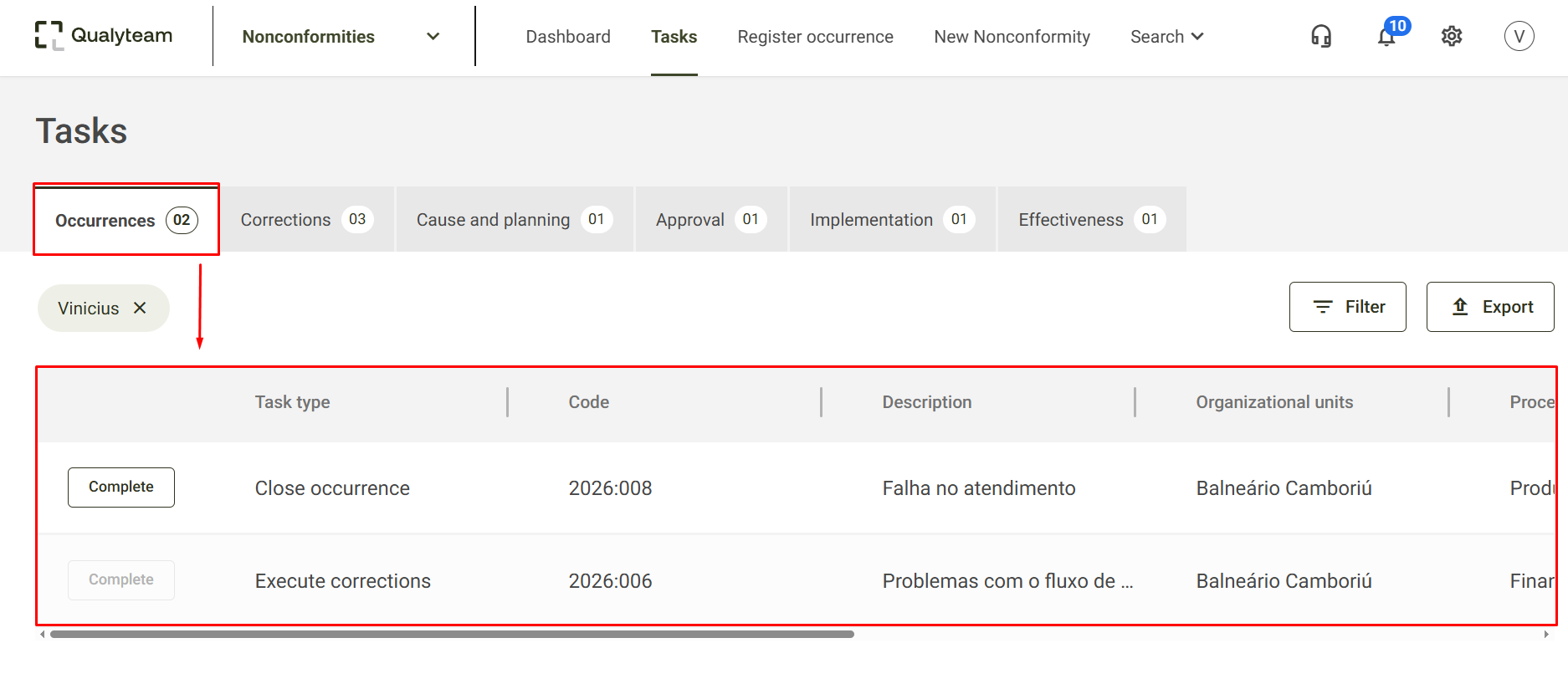
In the menu Occurrences,you will be able to track all pending occurrence-related tasks for your user.
On this screen, information about Task type, Code, Description, Organizational Units, Processes, Origin, Responsible and Open corrections of each pending event listed.
Corrections
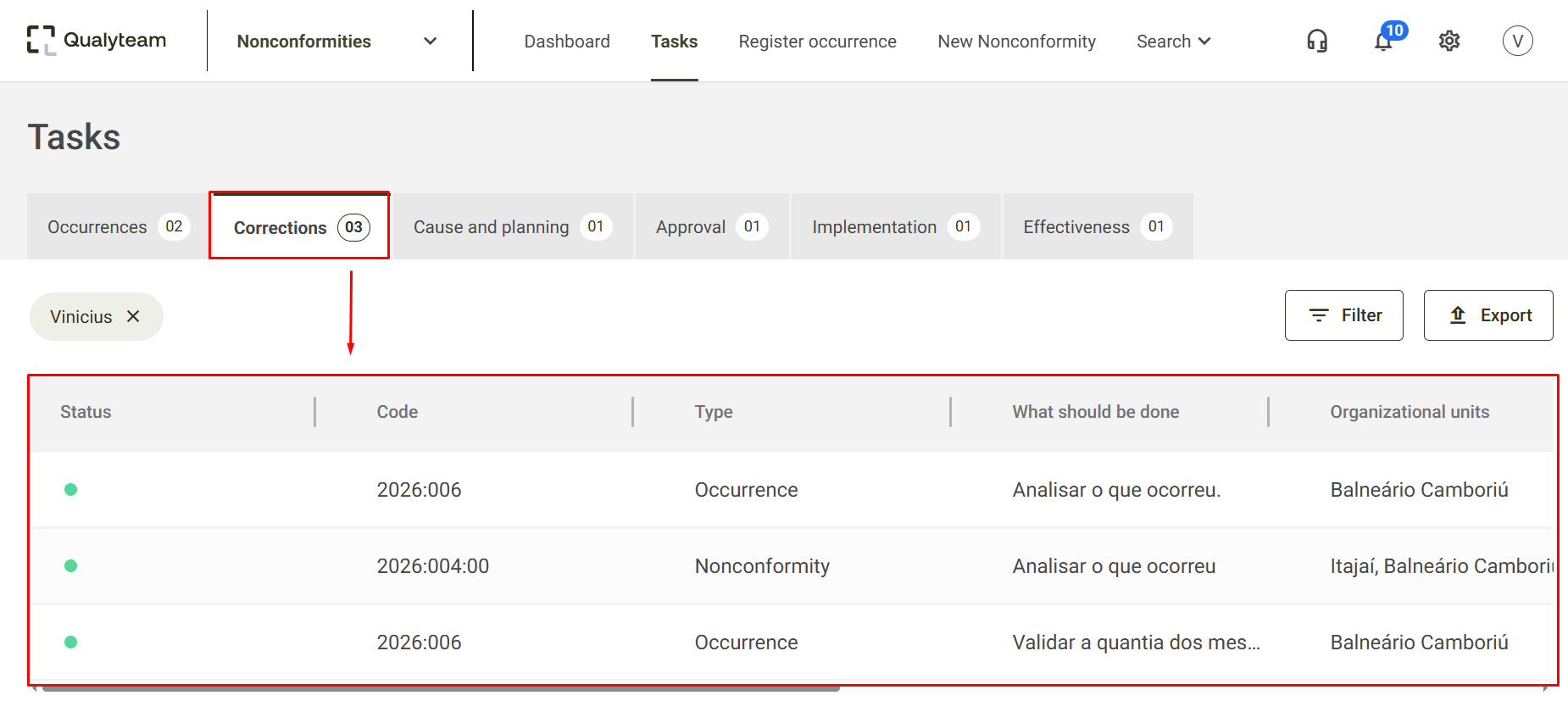
In the menu Corrections, you will be able to follow all the immediate action tasks of the occurrences, pending for your user.
On this screen, information about Status, Code, Type, What should be done, Organizational units, Processes, Origin, Responsible and Until when of each pending event listed.
Cause and planning
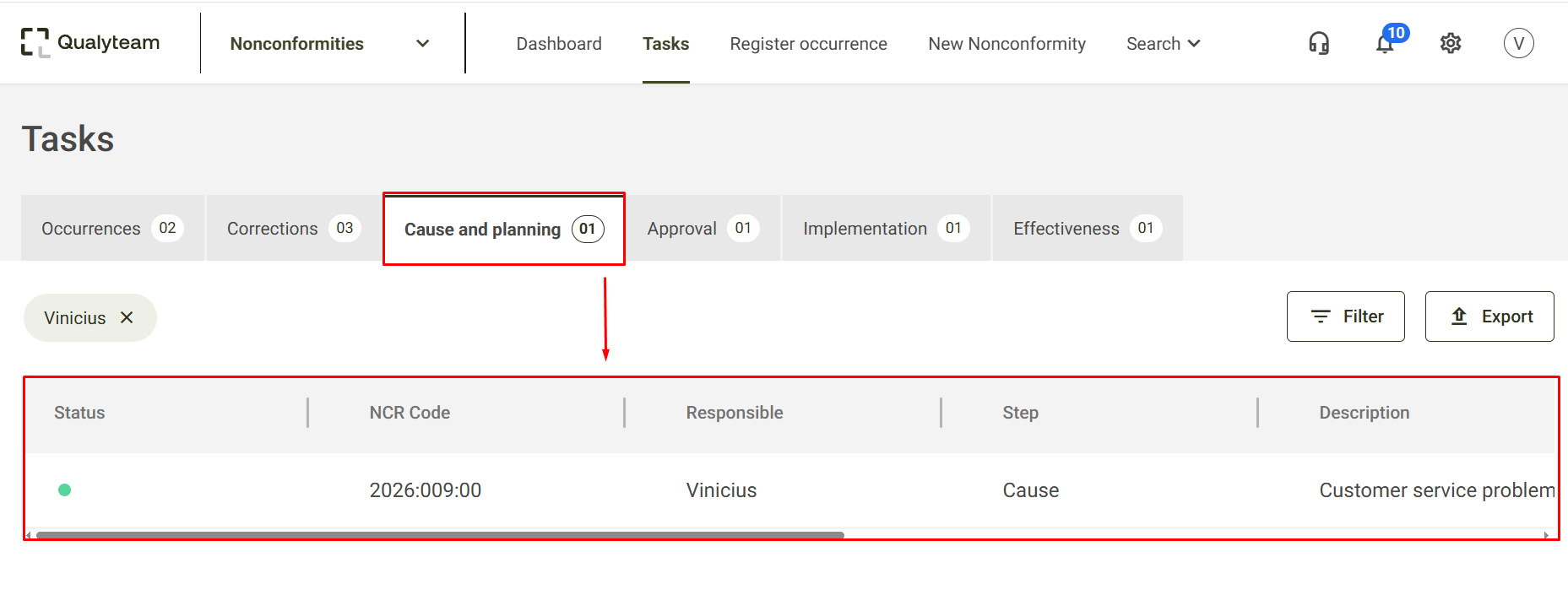
In the menu Cause and planning, you will be able to monitor all the non-conformity causation and planning tasks pending for your user.
On this screen, information about Status, NCR Code, Responsible, Step, Description, Organizational units, Processes, Origin and Due date of each of the outstanding non-conformities listed.
Approval
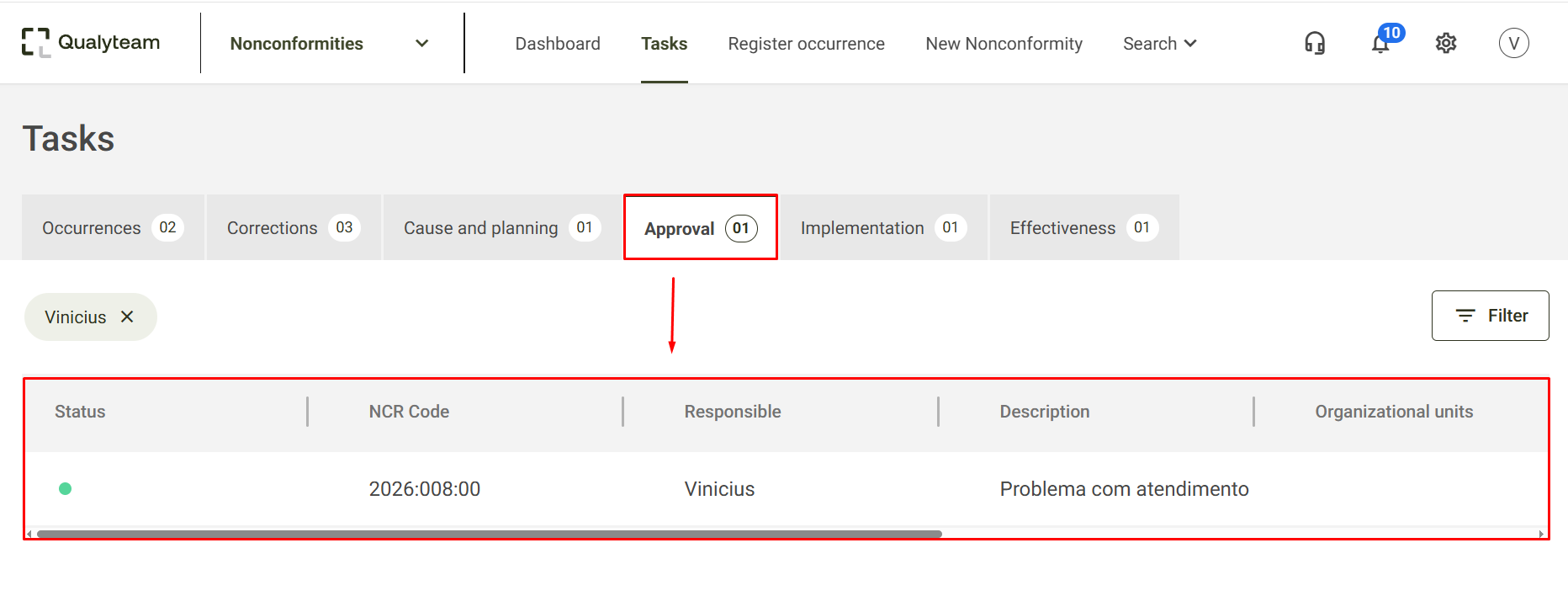
In the menu Approval, you will be able to monitor all pending non-conformity action plan approval tasks for your user.
On this screen, information about Status, NCR Code, Responsible, Description, Organizational units, Processes, Origin and Due date of each of the outstanding non-conformities listed.
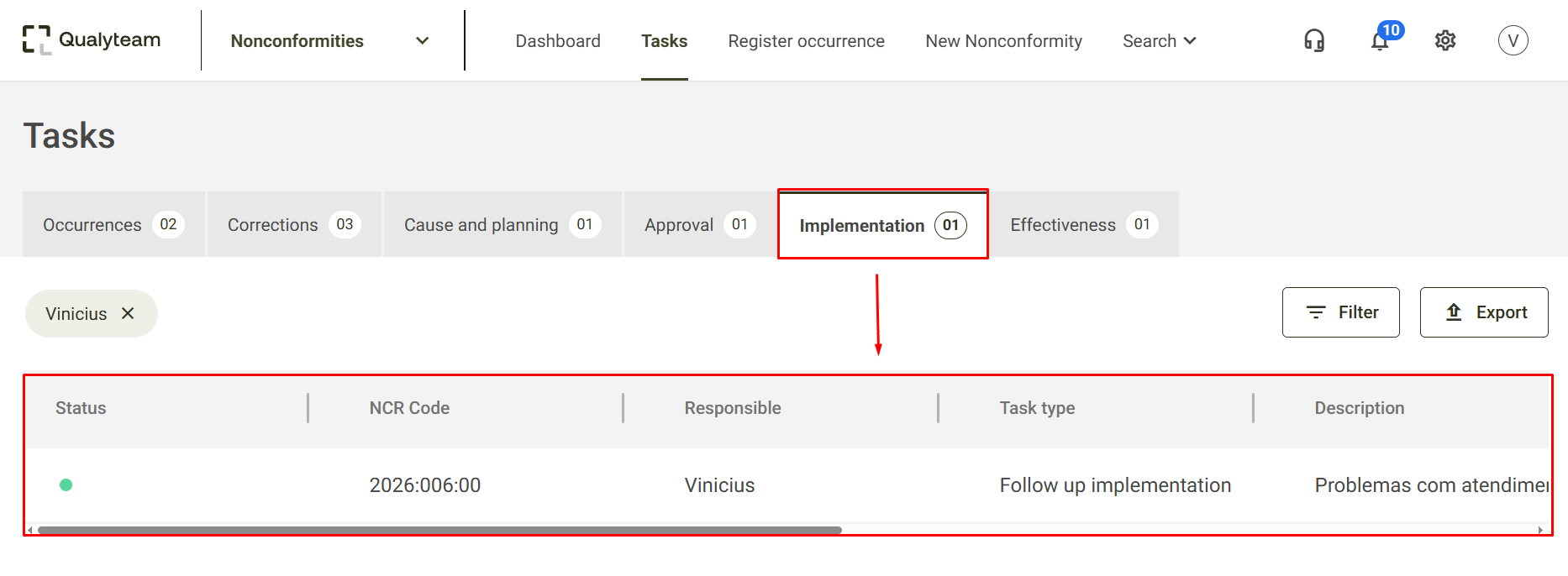
Implementation
In the menu Implementation, you will be able to monitor all non-conformity implementation tasks pending for your user.
On this screen, information about Status, NCR Code, Responsible, Task type, Description, Organizational units, Processes, Origin and Due date of each of the outstanding non-conformities listed.
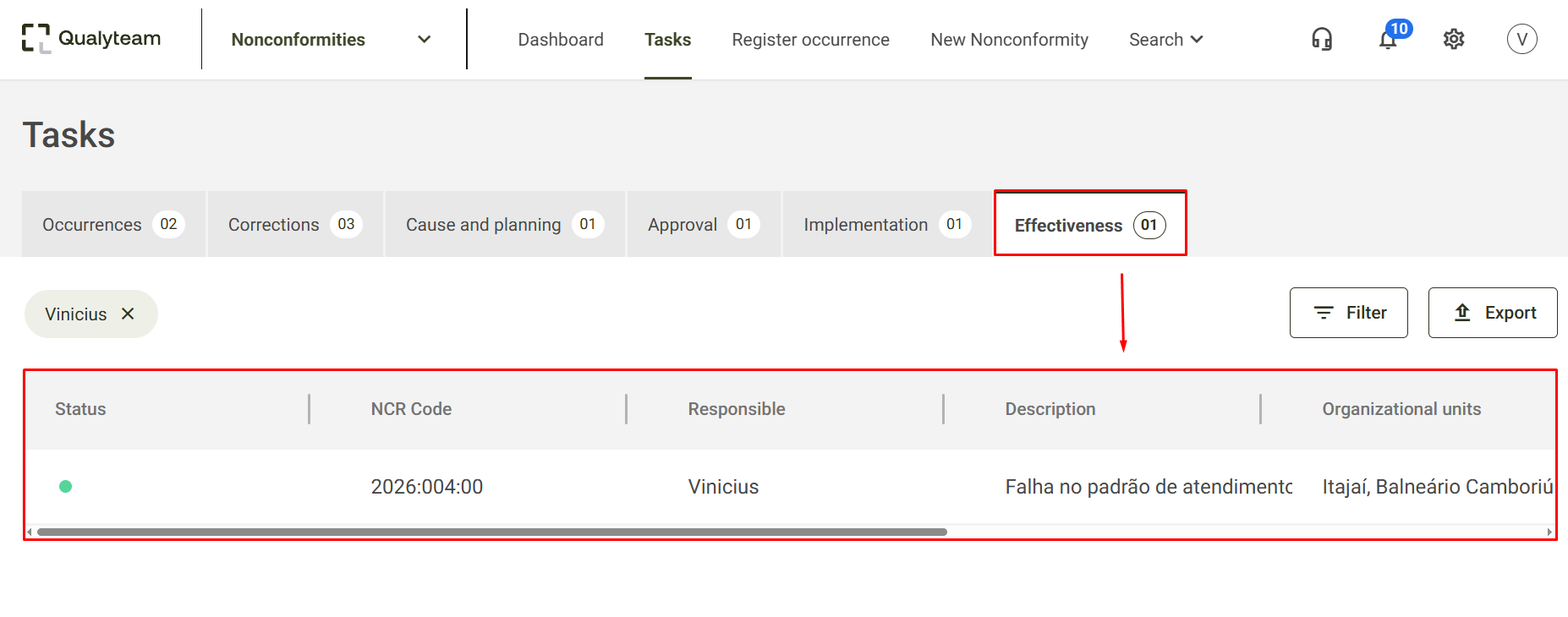
Effectiveness
In the menu Effectiveness, you will be able to monitor all non-conformity effectiveness assessment tasks pending for your user.
On this screen, information about Status, RNC Code, Responsible, Description, Organizational units, Processes, Origin and Date of each of the outstanding non-conformities listed.
Task status
Each of the tasks displayed in the menus Corrections, Cause and Planning, Approval, Implementation and Effectiveness is signaled by a color. The legend for each status (color) is displayed in the footer of the task screen.
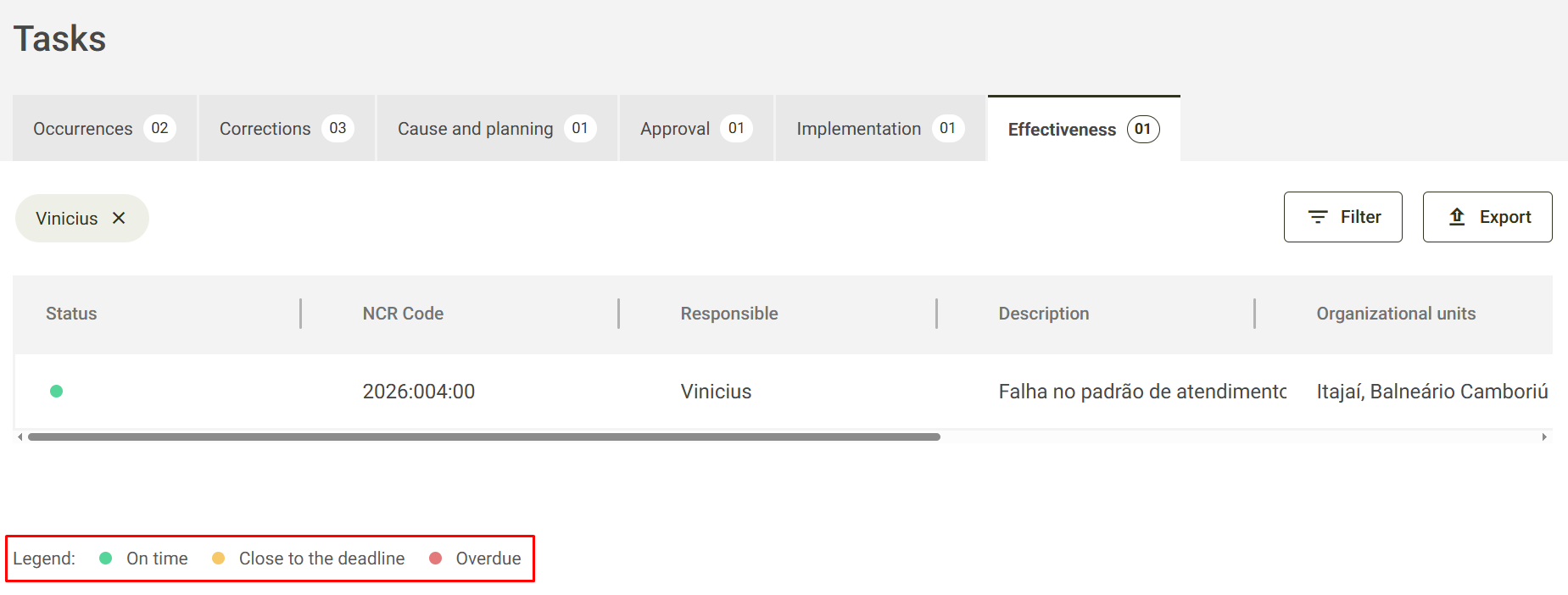
On time: the pending issue is still within the deadline to be completed;
Close to the deadline: the pending issue will be changed to this status on the day it expires;
Overdue: this status will be displayed after the pending deadline has expired.
Filter
For each of the menus, Occurrence, Corrections, Cause and Planning, Approval, Implementation and Effectiveness, You can apply filters. To do this, click the button Filter, located on the right side of the screen.
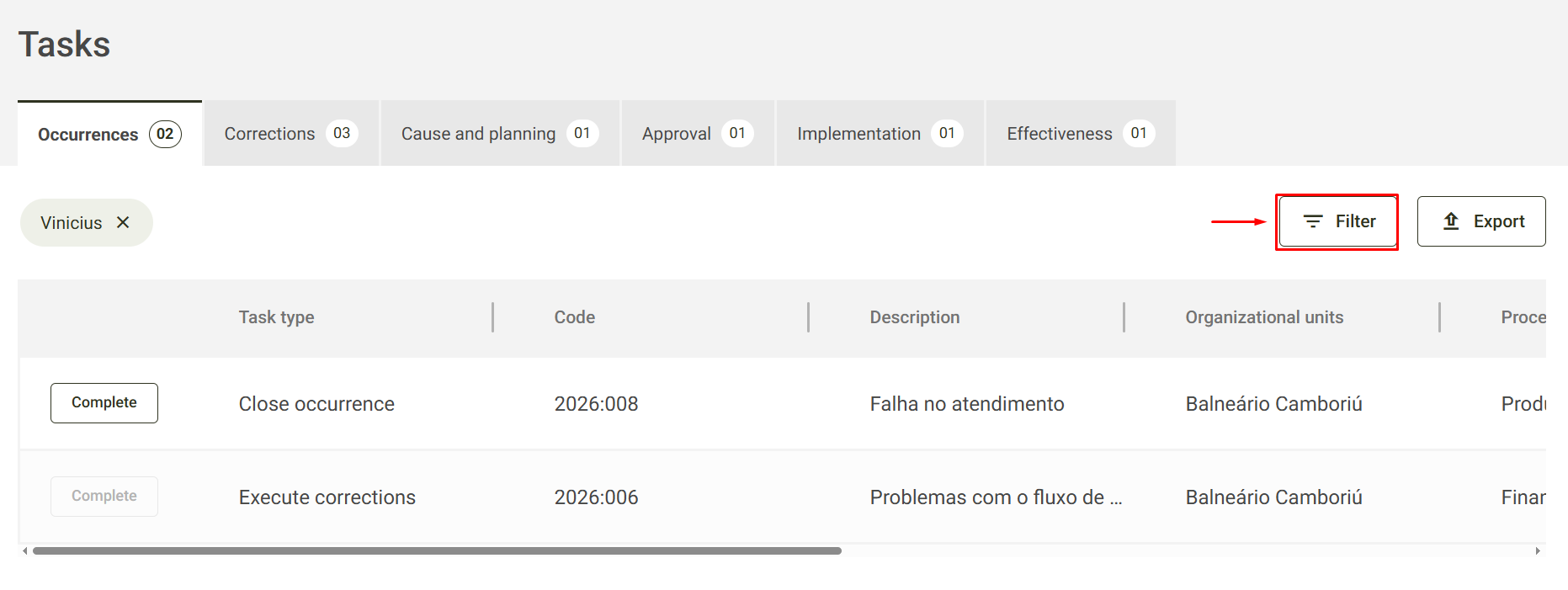
After clicking, the system will make the fields available for selection.
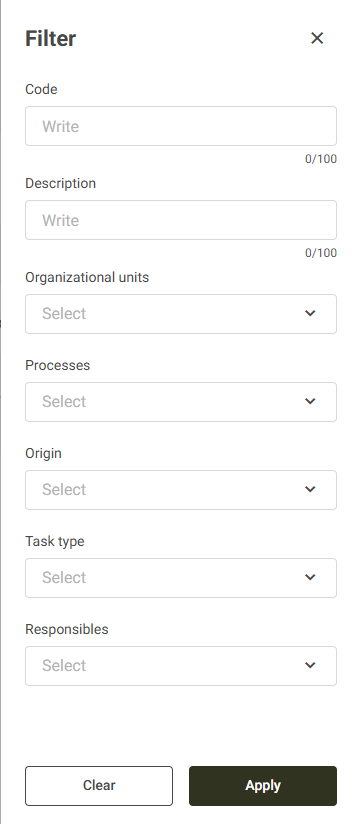
Code: In this field, enter the code of the occurrence you want to locate.
Description: In this field, enter the name of the occurrence you want to find.
Organizational unit: Define in this field the organizational unit you want to filter and view the tasks.
If no units are selected, the system will return all units by default.
Process: Define in this field the process you want to filter and view the tasks.
If no process is selected, the system will return all processes by default.
Origin: Define in this field the source from which you want to filter and view the tasks.
If no origin is selected, the system will return all origins by default.
Task type: Define in this field the type of task you want to filter and view the tasks.
If no type is selected, the system will return all types by default.
Responsibles: In this field, it will be possible to filter by those responsible, allowing you to view the tasks of other users. By default, the system will fill this field with the logged in user.
If the user does not have permission to view other users' tasks, the system will hide this field and only display its own tasks. For more details about permission, Click here.
Corrections menu:
- What should be done: In this filter, it will be possible to filter according to what was written in this field.
- Status: You can filter according to the task status.
- Due date: Allows you to filter by a fixed deadline date.
Export
The system allows you to export tasks to an Excel file. To do this, click the button Export, located on the right side of the screen.
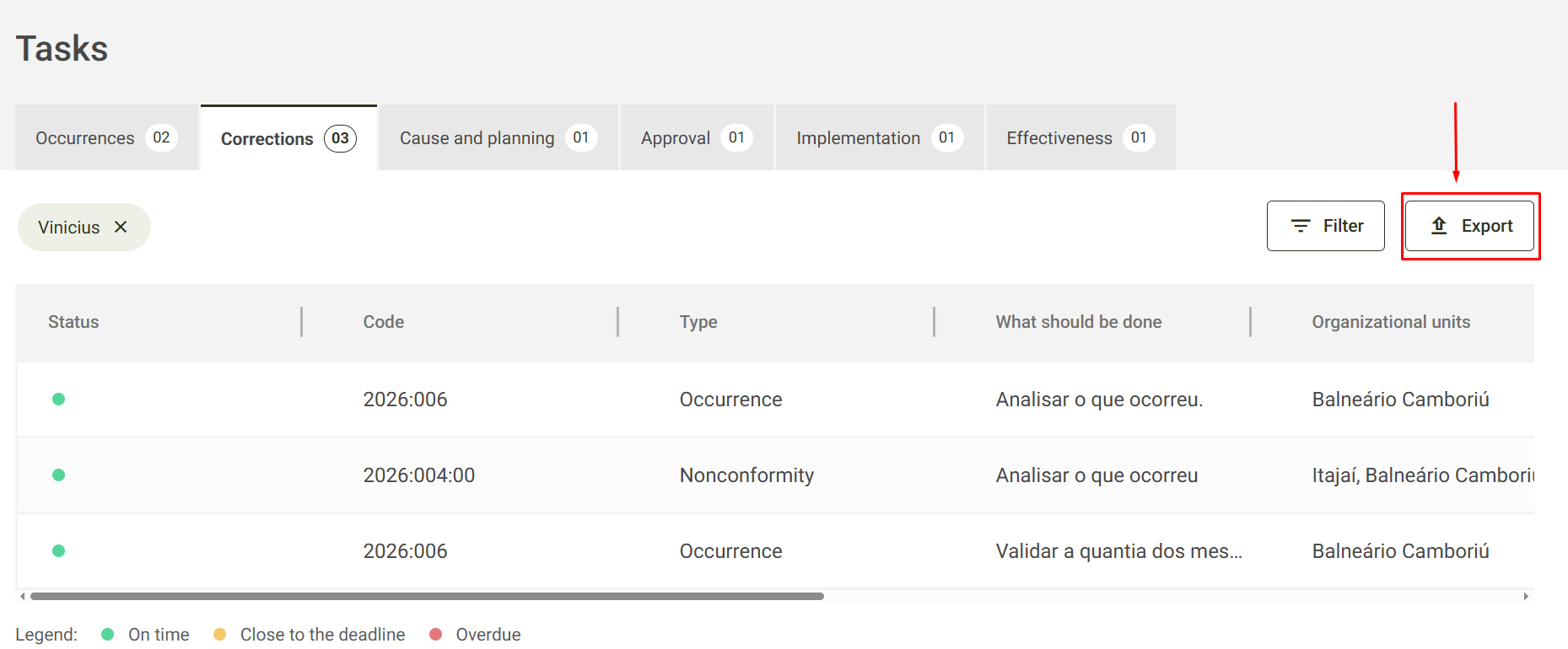
The file will be saved in the default download directory according to your browser configuration.