Objective
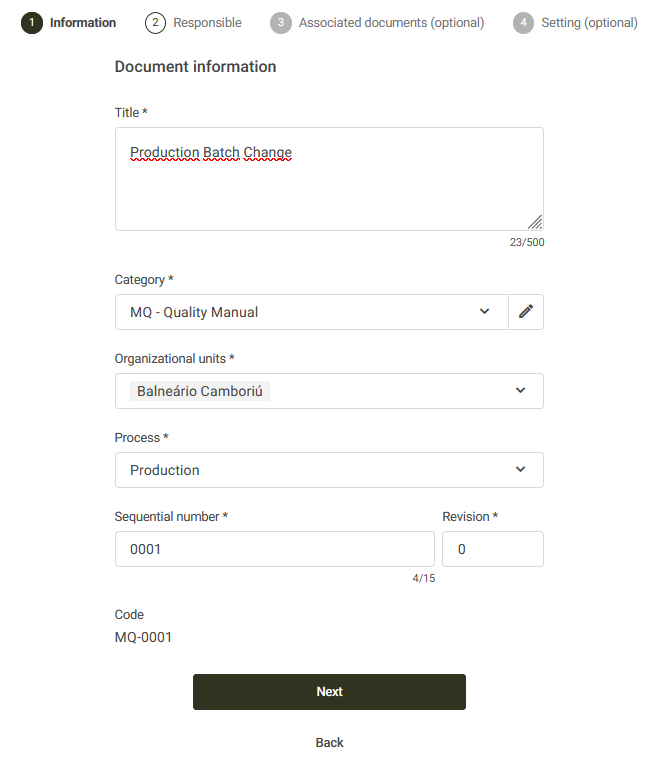
The Internal Documents registration feature allows you to create internally generated documents in the system through four steps: Information, Responsible Parties, Associated Documents, and Configuration.
This enables document management through document codes, revision control, publication notifications, access control, and mandatory reading for important documents.
This article explains each step required to register a new document, how to complete the necessary fields, and provides guidance to help you configure the document according to your organization's internal requirements.
Index
- Registering an Internal Document:
- 1) Information.
- 2) Responsible.
- 3) Associated Documents (Optional).
- 4) Configuration (Optional)
Prerequisites:
- Have permission to register internal documents, for more details about the Documents module permissions, click here.

Step-by-Step:
Registering an Internal Document:
To begin registering an internal document, access the Documents module and select the Internal Document tab.


2) Responsible.
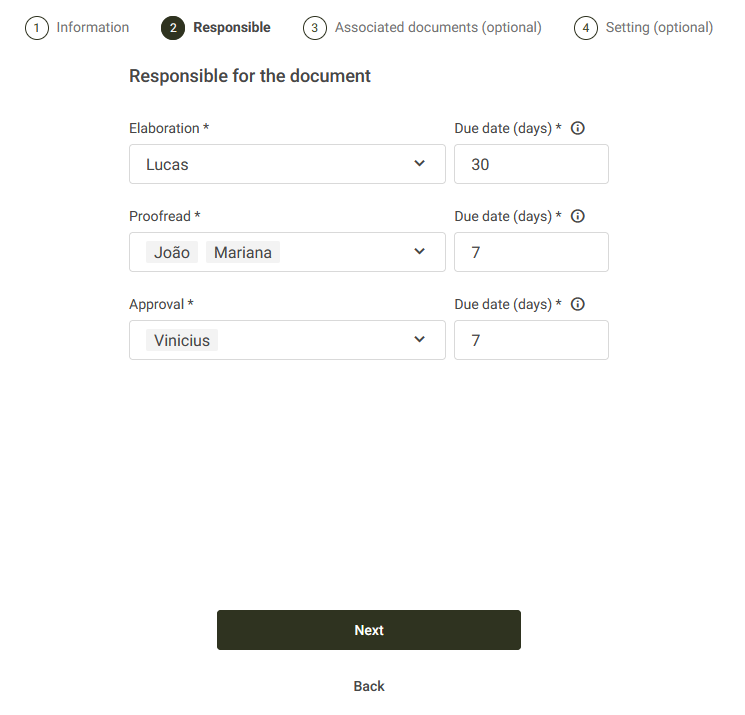
In this step, define the users responsible for each stage of the document workflow, as well as the deadline for completing each stage. An internal document can go through up to three stages, depending on the configuration defined for its category. For more information about document categories, click here. The available stages are:
- Elaboration: A mandatory stage with a single responsible user. This user is responsible for creating the document according to your organization's internal requirements. For more information about the Elaboration stage, click here.
- Consensus: An optional stage with one or more responsible users. During this stage, the document is reviewed and its information is validated. The assigned users must verify that the document complies with internal guidelines and has been properly prepared. For more information about the Consensus stage, click here.
- Approval: An optional stage with one or more responsible users. This is the final stage before the document is published in the system. The assigned users perform a final validation to ensure that no incorrect information has passed through the Consensus stage. For more information about the Approval stage, click here.
In our Production Batch Change document example, Lucas will be responsible for the Elaboration stage, João and Mariana will be responsible for the Consensus stage, and Vinicius will be responsible for the Approval stage. The default system deadlines will be used: 30 days for Elaboration, 7 days for Consensus, and 7 days for Approval.
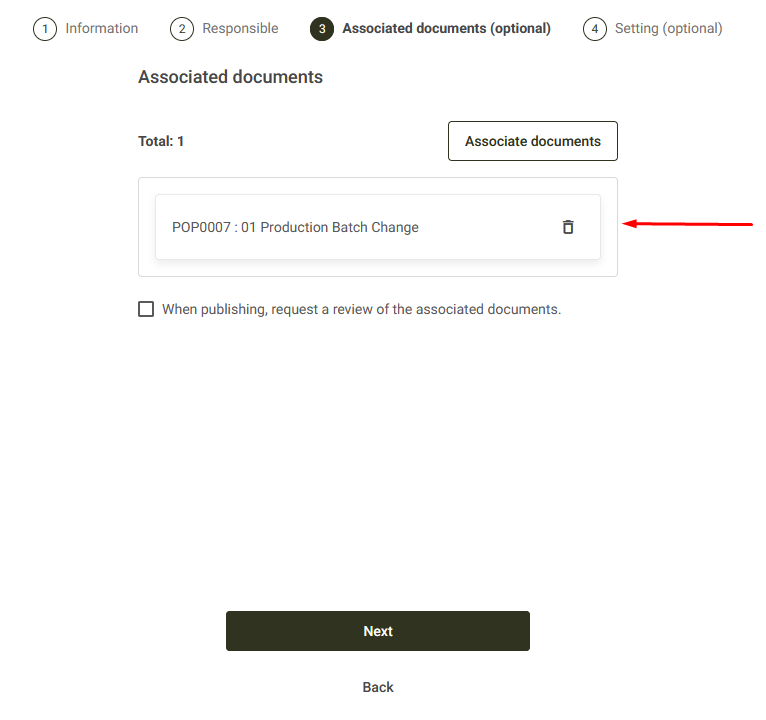
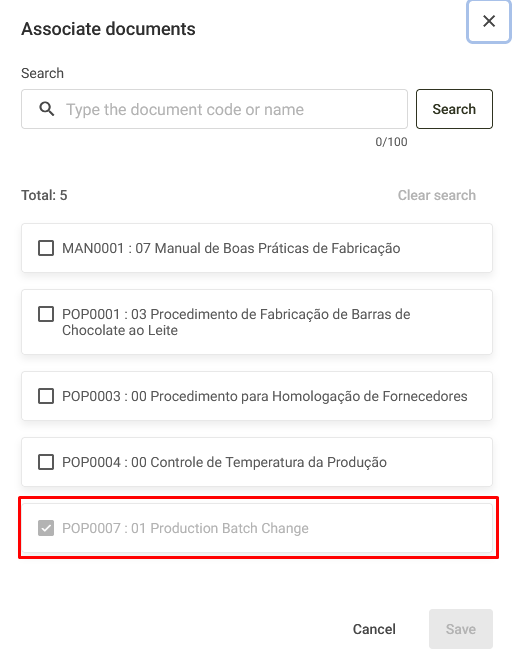
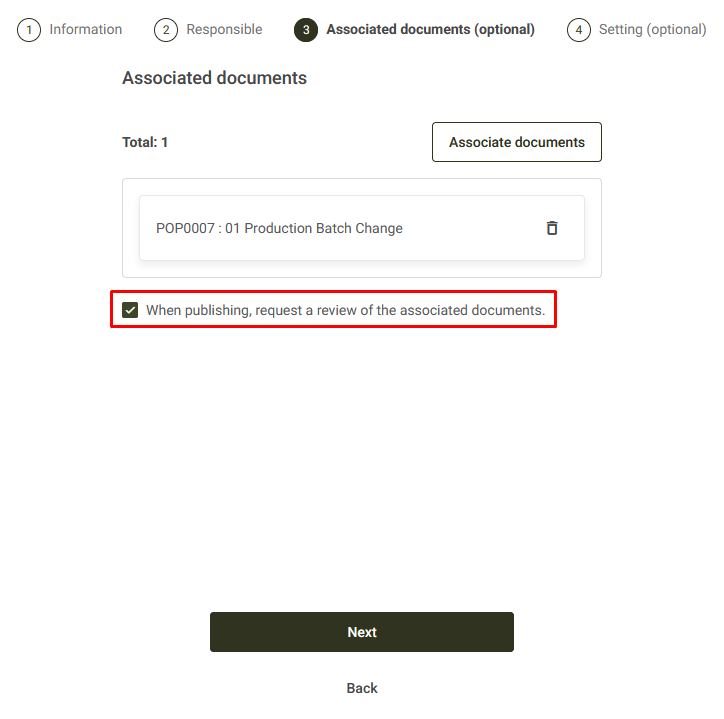
We will also enable the "When publishing, request a review of the associated documents." option so that, if necessary, the associated documents already registered in the system undergo a new review whenever the new document is published.
Attention: Only documents published in the system can be selected to be associated.
4) Configuration (Optional)
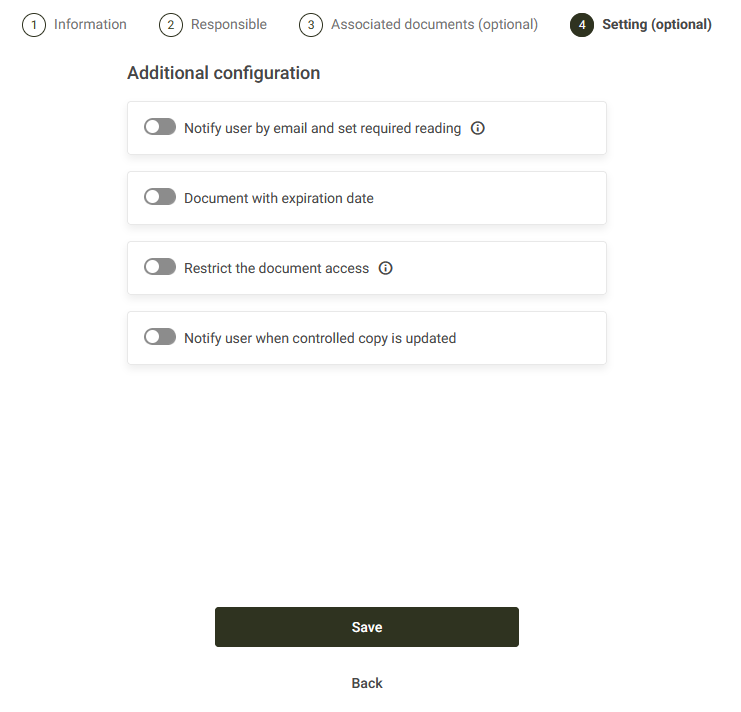
In this step, additional and optional settings for the document registration will be defined. These settings allow documents to have customized permission configurations. The available options are:
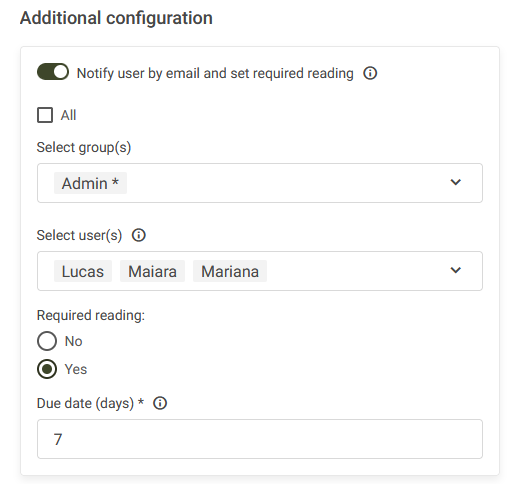
- Notify users by email and configure mandatory reading
- Document with expiration date
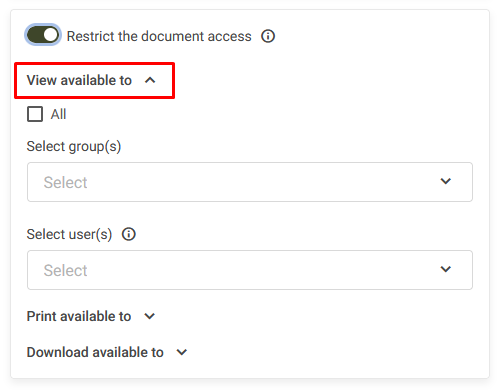
- Restrict access to the document
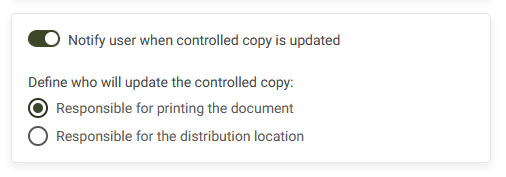
- Notify users when there is an update to a controlled copy
Document with expiration date:
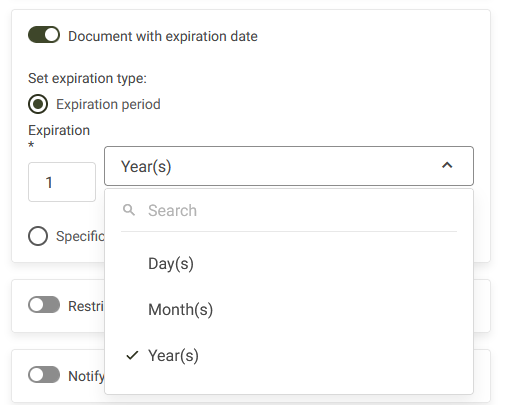
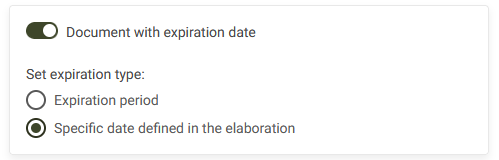
This option allows you to define the validity period of a document. It is possible to set a fixed validity period in year(s), month(s), or day(s), or define a specific date during the Elaboration stage.
Whenever documents with a validity period defined in days, months, or years undergo a revision, the expiration date will be automatically updated according to the period configured during registration.
Documents with a specific date defined during the Elaboration stage will have a new specific date assigned after each revision. For more information about the Elaboration stage, click here.
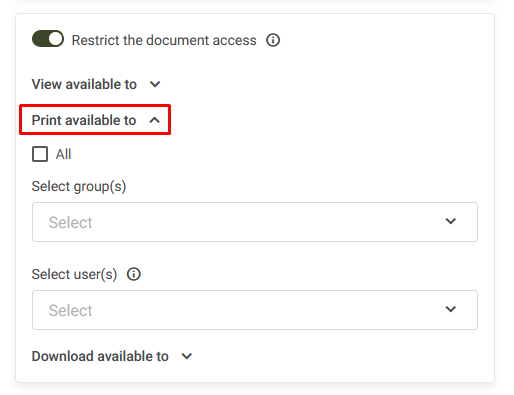
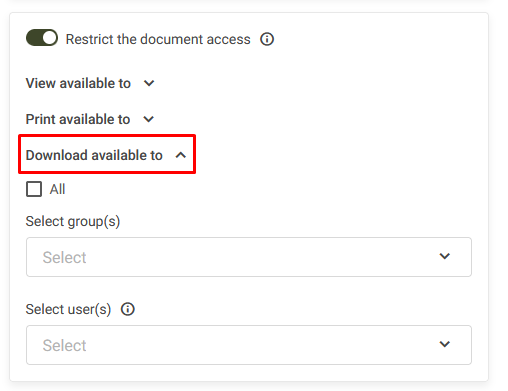
The "Print available for" option defines which users or groups can generate controlled or uncontrolled copies of these documents. For more information about document copy printing, click here.
The "Download available for" option defines which users or groups can download the original file of this document. For more information about downloading internal documents, click here.
Notify users when there is an update to a controlled copy:
This configuration defines which user will be responsible for the pending task of reviewing the document copy. It is possible to assign either the user who performed the printout or the person responsible for the location where the copy was distributed. For more information about controlled copy pending tasks, click here.